
SnapLine guide
Make the view yours
Place the ticker where you need it and keep broadcast graphics visible.
Player or page footer
Home’s current-site modes are Auto, Player, Footer and Off. Auto prefers a suitable video surface; Footer gives the ticker a fixed place on the webpage. Use the current-site setup flow when you need to identify a player manually.
Setting → result
Swipe to compare all providers
| Setting | What changes |
|---|---|
| Placement | Top or Bottom of the player. |
| Vertical position | Up / Down moves the ticker away from graphics or controls. |
| Ticker height | 50–150% scale of the ticker strip for this site. |
| Opacity | 40–100%; lower values reveal more of the picture beneath. |
| Video fit | 75–100%; shrink the picture to keep broadcast graphics visible. |
| Text size | 80–120%; smaller type gives long names more room. |
| Team logos | Show or hide team avatars. |
Find these controls in Settings → Appearance. The hostname identifies the site you are tuning. Reset site restores its player adjustments.
You can also adjust the ticker right on the page: hover it and choose … beside the playback buttons. Over a player the panel offers Placement, Vertical, Ticker height, Text size, Opacity and Video fit. In footer mode it offers Placement, Ticker height, Text size and Opacity. Placement, text size and opacity apply everywhere; ticker height applies to the current site.
Detail and rotation
In Settings → Ticker content, Detailed includes rotating Top Players; Simple shows matchup scores only. Choose Slow, Medium or Fast for ticker speed. Player and news content also influence how long an entry remains visible.
Choose your websites
In Settings, use All websites or Selected websites. Enter a domain or URL; SnapLine stores the hostname, includes subdomains and discards paths and ports. Use Off to disable the current site.
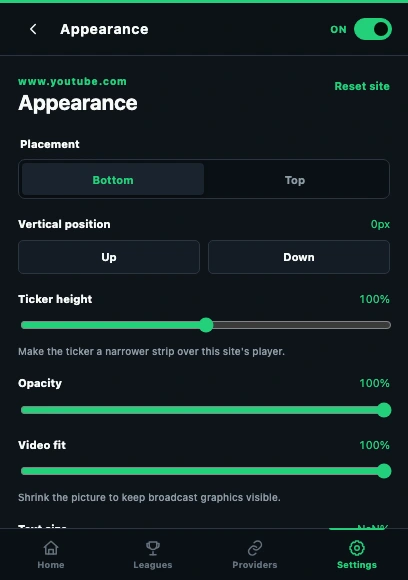
- Choose Top or Bottom placement.
- Resize Ticker height without confusing it with Text size.
- Video fit makes room for the ticker; scroll for Text size.
These guides describe SnapLine 1.1.1. Older versions may have different controls; find your version at the bottom of Settings.