
SnapLine guide
Connect Sleeper
Import your leagues with a Sleeper username. No password needed.
Find your username
Use the username shown in your Sleeper account or profile. A team name or league name is not the account username.
Enter it in SnapLine
Open Providers → Sleeper. Enter the account name in Sleeper username and click Connect Sleeper.
Choose your leagues
Review imported leagues and open League settings. Enable Show in ticker and choose All matchups or Selected teams; use My matchup if available.
What appears
Fantasy matchup scores, roster players, top-player spotlights, available projections and associated NFL game context. SnapLine does not show a Sleeper win-probability rail.
If no leagues appear
Check spelling and confirm that the username belongs to the account with your football leagues. Try Connect Sleeper again after correcting it.
Configure imported leagues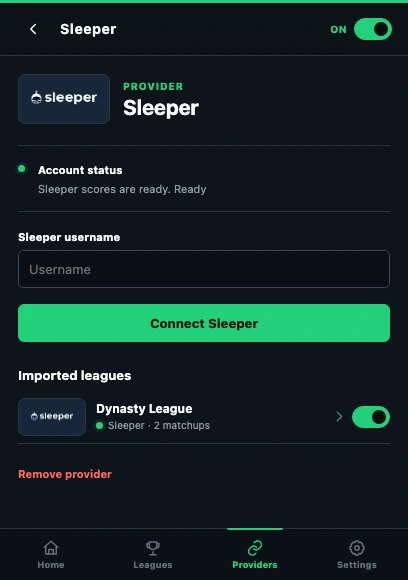
- Read the connection status before reconnecting.
- Use the provider’s Connect action in this Chrome profile.
- Open an imported league to check its settings.
These guides describe SnapLine 1.1.1. Older versions may have different controls; find your version at the bottom of Settings.