
SnapLine guide
Getting started
Install SnapLine, connect your leagues, and put your first matchup in frame.
Install from the Chrome Web Store
Choose Add to Chrome on the store listing and confirm the installation in Chrome.
Pin SnapLine
Open Chrome’s Extensions menu (the puzzle-piece icon) and pin SnapLine so it is easy to open.
Open SnapLine
Click the SnapLine icon. Follow the first-run walkthrough and use the labeled master switch to turn SnapLine On.
Choose where it can appear
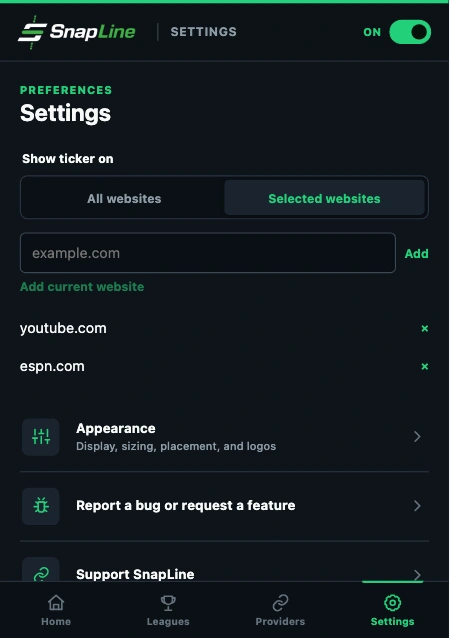
In Settings, choose All websites or Selected websites. For selected sites, add a domain or use the current-website action. Subdomains are included.
Connect a fantasy provider
Open Providers, then select Yahoo Fantasy, ESPN Fantasy or Sleeper. Follow the corresponding connection guide below.
Import your leagues
Use Connect Yahoo, Connect ESPN or Connect Sleeper. Successful connection imports available leagues; provider pages list them and link to their settings.
Select leagues and matchups
Open Leagues and choose a league. Turn on Show in ticker, then choose All matchups, My matchup when available, or Selected teams.
Open a page or video
Open a permitted website. Auto prefers a detected player and falls back to a footer; Player and Footer let you choose a site mode explicitly.
Adjust the display
Open Settings → Appearance for sizing and placement. Use Ticker content for Detail and speed.
If the ticker does not appear
Check the master switch, website scope and current-site mode, then verify that at least one league is enabled. Try Footer if player detection is the problem.
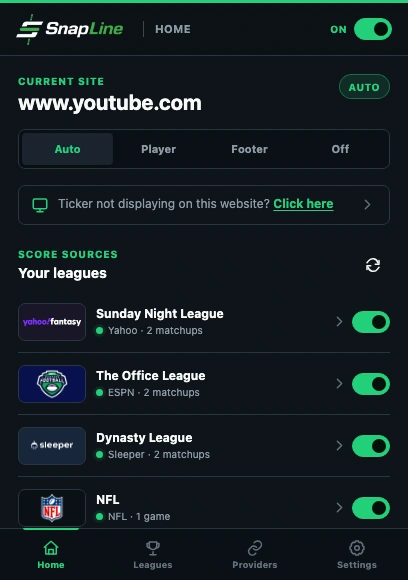
- Turn the master switch On.
- Choose Auto, Player or Footer for this website.
- Open the symptom-led troubleshooting flow when attachment fails.
These guides describe SnapLine 1.1.1. Older versions may have different controls; find your version at the bottom of Settings.