
SnapLine guide
Wrong player or controls overlap
Choose the correct video target and controls bar when automatic attachment misses.
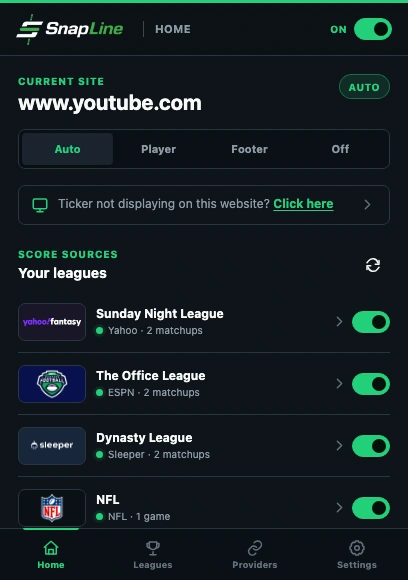
- Use Footer as a temporary fallback while diagnosing the player.
- Click the troubleshooting entry on the active video website.
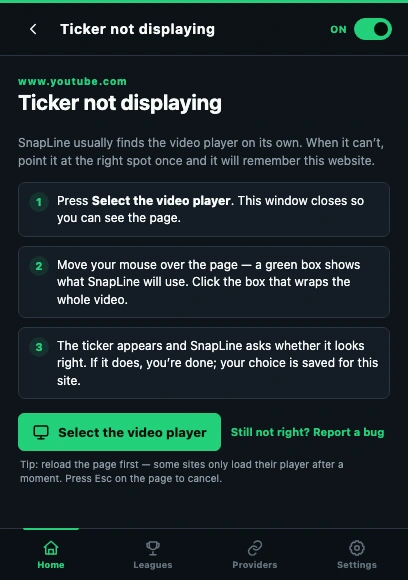
- Start the player pick, then click the green box around the whole video.
- If selection fails, the report action carries this symptom into support.
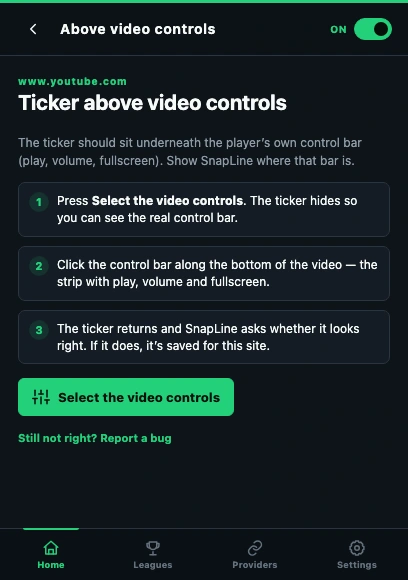
- Start the controls pick, then select the strip containing play, volume and fullscreen.
Test a playing video
Start playback and dismiss player menus. Verify you are configuring the tab containing the video, not a different tab. Embedded players and theater/full-screen modes can change the page structure.
Choose the player explicitly
On Home, click Ticker not displaying on this website? Click here, choose Ticker not displaying at all, then Select the video player, then select the actual video area on the page. The popup closes so you can make the selection. Avoid choosing a surrounding sidebar or an advertisement.
Correct the controls-bar target
If the ticker sits above or obscures controls, choose Ticker appearing above video controls → Select the video controls in the same troubleshooting list and point to the video player’s controls bar. Reveal the controls by moving the pointer over the player before selecting.
Recheck after layout changes
Test normal view, theater view and full screen separately. If the site replaced its player or changed its layout, repeat the selection. Keep Footer available on sites whose embedded player cannot host the overlay.
If it still happens
Tell us the website and viewing mode, whether it is an embedded player, and whether manual selection or Footer succeeds. Collect the right information and send a report →
These guides describe SnapLine 1.1.1. Older versions may have different controls; find your version at the bottom of Settings.