
SnapLine guide
Ticker size, text or video fit
Fix oversized strips, tiny text, blocked broadcast graphics and awkward placement.
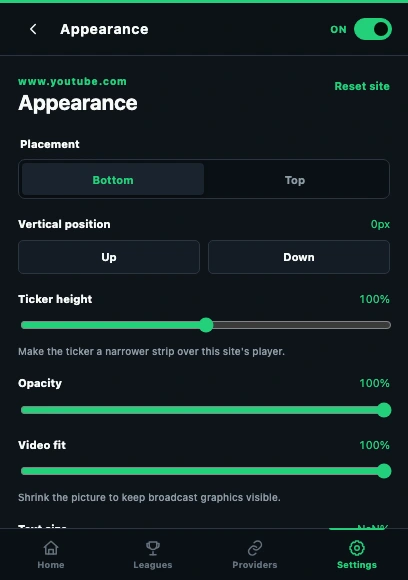
- Placement and vertical position move the strip without changing its content.
- Ticker height changes the strip; opacity controls how much video shows through.
- Video fit protects broadcast graphics; scroll down for Text size.
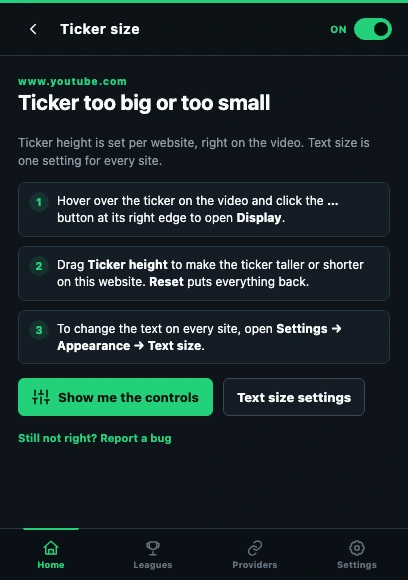
- Show me the controls opens the on-video display controls.
- Text size settings changes typography separately.
Start from a clean site adjustment
Open Settings → Appearance on the affected website. If old adjustments are confusing, choose Reset site, then change one control at a time. Site adjustments belong to the current website.
Match the strip to the player
Adjust Ticker height until scores are legible without taking too much picture space. Use Text size for long team names; it changes typography separately from strip height.
Move away from broadcast graphics
Try Top or Bottom placement and use Vertical position to move the ticker clear of a score bug, captions or controls. Lower Opacity only if the text remains readable.
Preserve the video picture
Use Video fit to make room for the overlay when it covers important picture content. Recheck the entire frame, including the broadcast scoreboard. If controls overlap, fix the player/control target rather than compensating only with size.
If it still happens
Include a screenshot of the whole player and your Appearance settings, plus whether Reset site changed the result. Collect the right information and send a report →
These guides describe SnapLine 1.1.1. Older versions may have different controls; find your version at the bottom of Settings.